QueryDash Usage Guide
Updated : pdexter 2025-06-11
The QueryDash page is a utility for performing elasticsearch queries on the underlying database. Results are displayed in a table, with a named link to each document in the first column.
It should be noted that the QueryDash is not a formal page for use by customers. Instead, a customised listing template (eg using sc-datatables) for customer oriented listing pages is recommended.
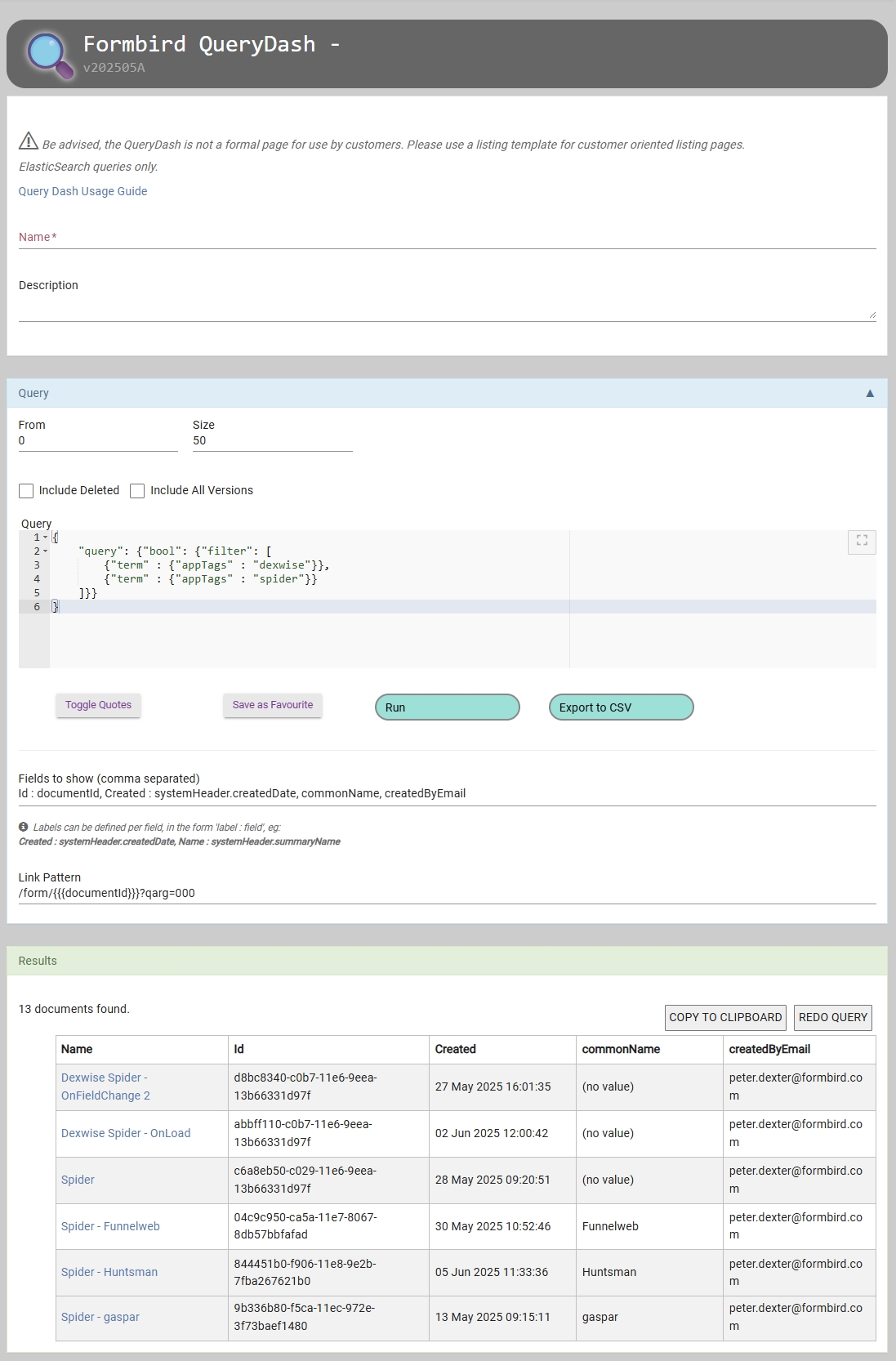
Creating a query and running
To create and run a query,
- Open the QueryDash template in your Formbird application
(documentId = c6097e00-ce29-11e5-bce0-c145a769f5e9 ) - Write the query within the "Query" field.
- A sample query is supplied on a new instance of QueryDash. This can be customised for each environment (see below).
- As of QueryDash v202401A, single and or double quotes can be used around keys and values. Keys do not need quotes at all. If using QueryDash earlier than this, use double quotes (") to surround key terms and values, not single quotes ('). See below about toggling quotes if copying from another source.
- If desired, change Size for the query to retrieve, defaults to 50. This is limited to 5000 for a normal query (using the "Run" button), however be mindful of performance issues with very large numbers here.
- If desired, change From for the query to retrieve, defaults to 0. There is now no limit to the From value (previously From + Size had to be less than 10,000).
- To run the query, click the button "Run".
- The results will display above the "Query" field.
- If you are looking at the top of the list, and wanted to rerun the query, an extra button "Redo Query" is available. It does the same thing as the regular "Run" button.
Export to CSV
To export full results to a csv file, click "Export to CSV".
The columns defined under "Fields to show" will be exported.
Saving a QueryDash
The QueryDash page can be saved, like any other template. It requires a Name to be defined before saving (for reference).
Results will not be saved with the page. The query itself will be saved, and rerun when the QueryDash document is opened again, or reloaded.
Default Queries
(Administrators Only)
Default queries can be defined for each environment.
Simply create a QueryDash document, naming it "DEFAULT", and save. This documents query will then be the default for each new QueryDash opened, unless the user has selected their own Favourite (see below).
Multiple defaults can be defined, by naming subsequent default QueryDashes to at least begin with "DEFAULT" (eg "DEFAULT_CASES"). A menu of defaults will be presented to the user on a new QueryDash.
Save as Favourite
If you have a particular default query you would like to be set to every time you open a new Querydash, you can write the query manually, then click the button Save as Favourite. The query and its display columns (see Showing Other Fields ) will be saved to your user account, and reloaded each time for a new Querydash.
Showing Other Fields
By default, the query will result in a listing of documents, showing primarily the systemHeader.summaryName of the documents (headed by "Name"). Also by default is a column for the "query" field, which in most cases will be undefined.
The systemHeader.summaryName will always show as the first column.
To show other fields in the list, add a comma separated list of field names in the "Fields to show" field, eg
email,firstName,surname
There is currently no setting of width for these columns; widths will generally be made wide enough to see all columns on the page.
Showing Array Fields
Specific array field values can also be shown, using field.numeral.property type notation, eg
menu.0.description
Alias Field Names
For showing a more friendly column name, a field alias can be used, eg
Description : menu.0.description
Showing Date Fields
Date fields may also be shown, eg
systemHeader.createdDate
The date value will be formatted as dd MMM yyyy HH:mm:ss
Created By
A special term "createdByEmail" can be added to the "Fields to show" to display the login email identifier of the person who created, eg
Created By : createdByEmail
Setting a Link Pattern
The Link Pattern field defines the url format for the link in the first column.
The default is /form/{{{documentId}}}
One could define for the documents to be opened in an alternative template, eg
/form/{{{documentId}}}/74746c80-8378-11e6-99b1-71ee944cf59f
... for opening the documents in the template/document editor (74746c80-8378-11e6-99b1-71ee944cf59f).
Showing a listing of QueryDashes
A special listing template is defined for QueryDashes, being:
https://(your-environment)/form/566a3c4e6648af7518460724
Limitations
The QueryDash by default will only show fifty (50) results of any query.
It can be set to show up to 5000 for a normal query (ie not an export), by setting the "Size" field.
However, it will display the total count of matches at the top of the query results.
With versions before QueryDash v202401A, the total count displayed may be limited to no more than 10,000.
If a particular set of documents that don't appear in the first displayable tranche of results is required,
- Change the query to narrow down the search.
{"wildcard": {"field-name" : "D*" }}added to the filter array will return those results whose field-name starts with "D".- Add a "from" argument to the search query
"from":50(with size of 50) will fetch the second bloc of fifty,"from":100will fetch the third bloc, etc- The from field is configured to increment/decrement by 50 with the up-down buttons.
- Add a "sort" argument to the search query, to favour the particular set required.
The QueryDash is also limited by the user's granted access to documents. This will not display those documents that are locked by security keys that the user does not have.
Additional Features
Toggle Quotes
This button changes all quotation marks in the query pane from double to single quotes & vice-versa.
Pre v202401A, only double-quotes around terms and values are recognised in running a query on this page.
If your query contains both kinds of quote marks, say for one that is enclosed within another, do not use this button. It will change all quotes to one or the other, but will not maintain the mixed states.
As of QueryDash v202401A, either quote type is acceptable, and even not necessary for keys in the query (ie those elements before a colon (:)).
Useful for copying and pasting queries from ruleset script or other query utilities.
Copy to Clipboard
This button will copy the results to the system clipboard, which can be pasted into a spreadsheet for reporting.
This is limited to the displayed results, not all possible matches to the query.
User specific Query
A user specific query can be defined by including the token "{{account.documentId}}" or
"{{user.documentId}}", eg
"query": {"bool": {"filter": [
    {"term" : {"appTags" : "system"}},
    {"term" : {"appTags" : "querydash"}},
    {"term" : {"systemHeader.createdBy" : "{{user.documentId}}"}}
]}}