Formbird Offline Mode
Overview
Formbird's offline mode enables continuous access to data in environments with unreliable internet connectivity. When connectivity is lost, the app seamlessly transitions to offline queries, guaranteeing uninterrupted data availability.
Documentation Index
| Document | Description |
|---|---|
| 101-Offline-Architecture.md | System architecture, components, and data flow |
| 102-IndexedDB-and-Dexie.md | Browser database, indexes, and query translation |
| 103-Service-Workers.md | Static asset caching with Workbox |
| 104-Offline-Syncing.md | Rust syncher, BSON protocol, and queue management |
| 105-Map-and-Tile-Caching.md | Vector tiles, Vicmaps, and map configuration |
| 106-Initial-Caching-Process.md | Caching workflow and progress tracking |
| 107-Error-Handling.md | Fatal vs non-fatal errors, recovery |
| 108-Offline-UI-Components.md | sc-offline-status and indicators |
| 109-Configuration-Reference.md | All configuration options |
| 110-File-and-Attachment-Handling.md | OPFS storage and file caching |
| 112-Performance-Optimization.md | Memory, speed, and best practices |
| 113-Mobile-and-Device-Considerations.md | Android, iOS, and tablet specifics |
| 114-Offline-Test-Suite.md | Fatal/non-fatal error tests and test utilities |
| 115-Manual-Test-Script.md | Manual test checklist for QA verification |
Quick Start
How Offline Works
Offline mode operates in two ways:
-
Device-level offline - Disabling internet connectivity on the device itself (e.g., turning off WiFi or cellular connection). The app automatically detects the loss of connectivity and switches to offline queries.
-
Application-level offline - Using the "Enable Offline" button in Formbird to enforce offline mode for the application, even when internet connectivity is available. This is useful for testing or when you want to guarantee local data access.
Prerequisites
- Offline access key configured in user's
accountControl - Documents marked with offline key in
systemHeader.keyIds - Templates configured with
attachKeysfor new documents - Map bounds configured if offline maps needed
Enabling Offline
- Log in to Formbird
- Click user icon in header
- Select "Enable Offline"
- Wait for caching to complete
- Device can now operate offline
Context and Purpose
Formbird App's offline mode is designed to ensure continuous access to data in environments with unreliable internet connectivity. This mode is critical for maintaining data access during unexpected loss of connection, such as during an online query. When connectivity is lost, the app seamlessly transitions to offline queries, guaranteeing uninterrupted data availability.
Setting Up Offline Access
1. Create Offline Keys
Offline keys are unique identifiers (UUIDs) used to mark documents for offline access. Generate a UUID, for example: your-offline-uuid-key.
2. Assign Offline Keys to Documents
To make documents available offline, add the offline key to the keyIds array in the systemHeader of each document. This is essential for offline access.
Example Document with Offline Key:
{
  ...
  "systemHeader": {
    ...
    "systemType": "document",
    "keyIds": ["your-offline-uuid-key"]
  }
}
Additionally, for enabling offline access in documents created using a specific template or by a user account, add the offline key to the attachKeys property of the template or account.
Example of Template or User Account with Offline Key:
{
  "attachKeys": ["your-offline-uuid-key"]
}
3. Configure User Access for Offline Usage
Add the offline key to accountControl documents for users requiring offline access. This grants necessary permissions for offline document manipulation.
Important: The "Offline" right must be included in the rights array and is case-sensitive.
Example of User Access Configuration:
{
  "accessKeys": [
    {
      "keyId": "your-offline-uuid-key",
      "rights": ["Create", "Update", "Read", "Offline"]
    }
  ]
}
You should also add offline keys to component documents that are used in offline templates. See 012-Offline-Setup.md for a complete list of document types requiring offline keys.
4. Offline Maps Configuration
If offline maps are required, configure the map caching in the clientConfiguration section of your application configuration document.
Example of Map Caching Configuration in clientConfiguration:
{
  "clientConfiguration": {
    "openLayers": {
      "mapViewsToCache": [
        {
          "name": "Vicmaps Colour",
          "styleLocationUrls": [
            "https://vicmap.land.vic.gov.au/hosting/rest/services/Hosted/Vicmap_Vector_Tile_Basemap_Colour_WM_Hosted/VectorTileServer/resources/styles/root.json"
          ],
          "minZoom": 1,
          "maxZoom": 15,
          "dataBounds": [
            {
              "topLeftCoord": [144.173, -37.209],
              "bottomRightCoord": [144.965, -37.959]
            }
          ],
          "url": "https://vicmap.land.vic.gov.au/hosting/rest/services/Hosted/Vicmap_Vector_Tile_Basemap_Colour_WM_Hosted/VectorTileServer/tile/{z}/{y}/{x}.pbf"
        }
      ]
    }
  }
}
Also, within the sc-street-address component that is required offline, tileServerGL needs to be set to true to use the cached maps.
{
  "componentName": "sc-street-address",
  "name": "streetAddress",
  "tileServerGL": true,
  ...
}
See 105-Map-and-Tile-Caching.md for detailed map configuration options.
5. Include Offline Libraries
For libraries needed offline (e.g., d3.js), create vendorLibrary documents. Include the library URL and the offline key to ensure availability in offline mode.
Example of a Vendor Library Document for Offline Access:
{
  "documentId": "e2bdbe4f-4acb-43d6-9511-f002496a6160",
  "name": "d3",
  "fileName": "https://cdn.jsdelivr.net/npm/d3@3.5.6/d3.min.js",
  "systemHeader": {
    "systemType": "vendorLibrary",
    "keyIds": ["your-offline-uuid-key"]
  }
}
Template Reference: Use the template available at Formbird Vendor Library Template to create or modify vendor library documents.
6. Querying Data Offline
To test queries offline without taking the device offline, utilize the template at Offline Query Testing. This template uses the searchOfflineOnly option to force the datatable to always run the offline query, even when online.
json
  {
      "componentName": "sc-datatables",
      "searchOptions": {
          "searchOfflineOnly": true
      }
      ...
  }
Viewing Offline Queue
To monitor and manage documents that have been saved or updated while offline, use the Offline Queue Template. This template displays all documents waiting in the offline queue to be synced with the server.
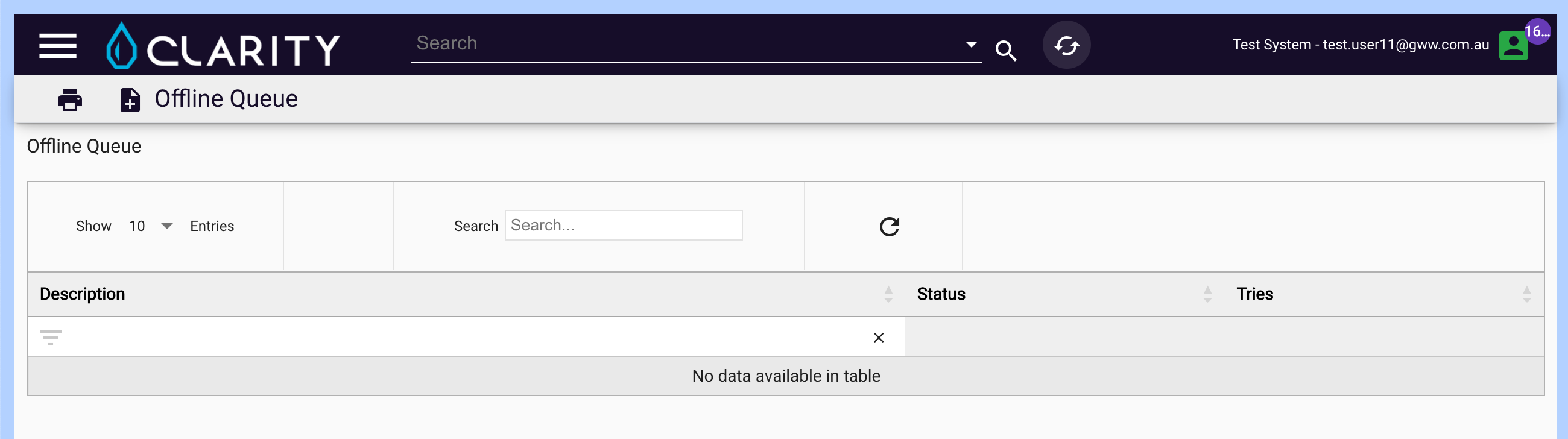
Note: Offline mode must be enabled to view and interact with the offline queue.
Technologies Behind Offline Mode
-
IndexedDB: Formbird utilizes IndexedDB for offline data storage. This web-based database stores data in the user's browser, allowing for efficient and secure access to data in offline mode. See 102-IndexedDB-and-Dexie.md for details.
-
Service Worker: Static files and app components are cached using a Service Worker. This technology is fundamental in controlling the caching process, enabling the app to function seamlessly offline by storing necessary static resources. See 103-Service-Workers.md for details.
-
Rust Syncher: A BSON-based synchronization server handles efficient data transfer between client and server. See 104-Offline-Syncing.md for details.
-
Dexie ElasticSearch Addon: Translates ElasticSearch queries to Dexie queries, enabling the same query syntax to work both online and offline. See 102-IndexedDB-and-Dexie.md for details.
Further Reading
For detailed technical documentation, refer to the linked documents in the Documentation Index above. Key topics include:
- Architecture - 101-Offline-Architecture.md provides a complete system overview
- Configuration - 109-Configuration-Reference.md lists all available options
- Troubleshooting - 107-Error-Handling.md covers error handling and recovery
- Performance - 112-Performance-Optimization.md provides optimization tips
- Mobile - 113-Mobile-and-Device-Considerations.md covers device-specific considerations