Using the Application
This article covers the core features and concepts you'll use throughout Formbird FLEET — from saving your work to finding records and understanding how the application is organised.
Saving Your Work
Formbird FLEET does not save changes automatically. Whenever you edit a record or fill in a form, you need to save manually before leaving the page.
When you make a change, a Save Tick (a flashing tick mark) appears in the top left corner of the page. Select it to save your changes.
If you navigate away from a page without saving, your changes are lost. If you undo a change manually and the Save Tick is still showing, saving at that point has no effect — the record stays as it was before you started editing.
Some actions in the application save automatically. Where this happens, you will not need to select the Save Tick.
Quick Help
The Quick Help icon ( ) appears throughout the application. Selecting it opens a help panel specific to the page or section you are currently viewing.
Tables
Tables appear throughout Formbird FLEET for browsing and finding records. Each table has controls to help you find what you're looking for.
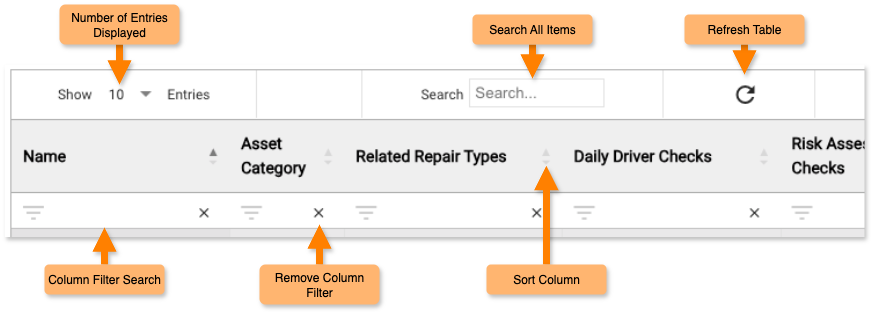
| Control | What it does |
|---|---|
| Number of entries | Sets how many rows appear on each page of the table. |
| Search All Items | Searches across all columns at once. Useful when you're not sure which column contains the information you need. |
| Refresh Table | Clears all filters and reloads the table. Any changes you've saved will appear after refreshing. |
| Column Filter | Searches within a single column. You can filter multiple columns at the same time. |
| Remove Column Filter | Clears the filter on that column. |
| Sort Column | Sorts the column — cycles through ascending, descending, and unsorted each time you select it. |
Panels
Records in Formbird FLEET are divided into panels — collapsible sections that group related fields together. For example, an asset record might have a Classification panel, a Booking / Hire panel, and a Documents panel.
Panels can be expanded or collapsed by selecting the panel header. When you open a record, some panels may be collapsed by default — select the header to expand them and view the fields inside.
Global Search
The Global Search bar appears at the top of every page. Use it to search across all records in the application at once.
Type your search terms and press Enter to see all matching results on a single page.
Templates and Documents
You may encounter the terms template and document within Formbird FLEET. These refer to the underlying structure of the Formbird platform:
- A template is the blank version of a page or form — it defines the layout and fields.
- A document is a saved record created from a template — it holds the actual data.
Most of the time, you are working with documents. You do not need to interact with templates directly unless you are an Administrator configuring the application.
Common Terms
The following terms appear regularly throughout Formbird FLEET.
| Term | Meaning |
|---|---|
| Asset | Any physical item tracked in the application — from large plant such as graders and trucks to smaller equipment like drills and batteries. |
| Daily Driver | A digital pre-start checklist completed by an operator or driver before using an asset. Used to record the asset's condition and report any faults. |
| Environment | Your organisation's own version of Formbird FLEET. Each organisation has a separate environment with its own data and configuration. |
| Pool | A group of shared assets available for booking. Access to a pool is controlled by an Administrator. |
| Request | A maintenance request raised for an asset — typically by an operator reporting a fault, or by workshop staff to initiate planned work. |
| Work Order | The formal record of maintenance work to be carried out on an asset. Work Orders are created from Requests. |
| Document | A saved record created from a template. Most pages in the application are documents. |
| Template | The blank original version of a page or form, defining its structure and fields. |
Published: April 2026 · Formbird FLEET 4.2.8